· retrotech · 6 min read
HyperTerminal vs. Modern Alternatives: Are We Losing Essential Technical Skills?
A nostalgic look at HyperTerminal and a critical comparison with modern terminal emulators. Explores whether the shift to polished GUIs has dulled vital hands-on skills-serial debugging, bootloader rescue, and low-level troubleshooting-that once separated the competent engineer from the panicked support call.
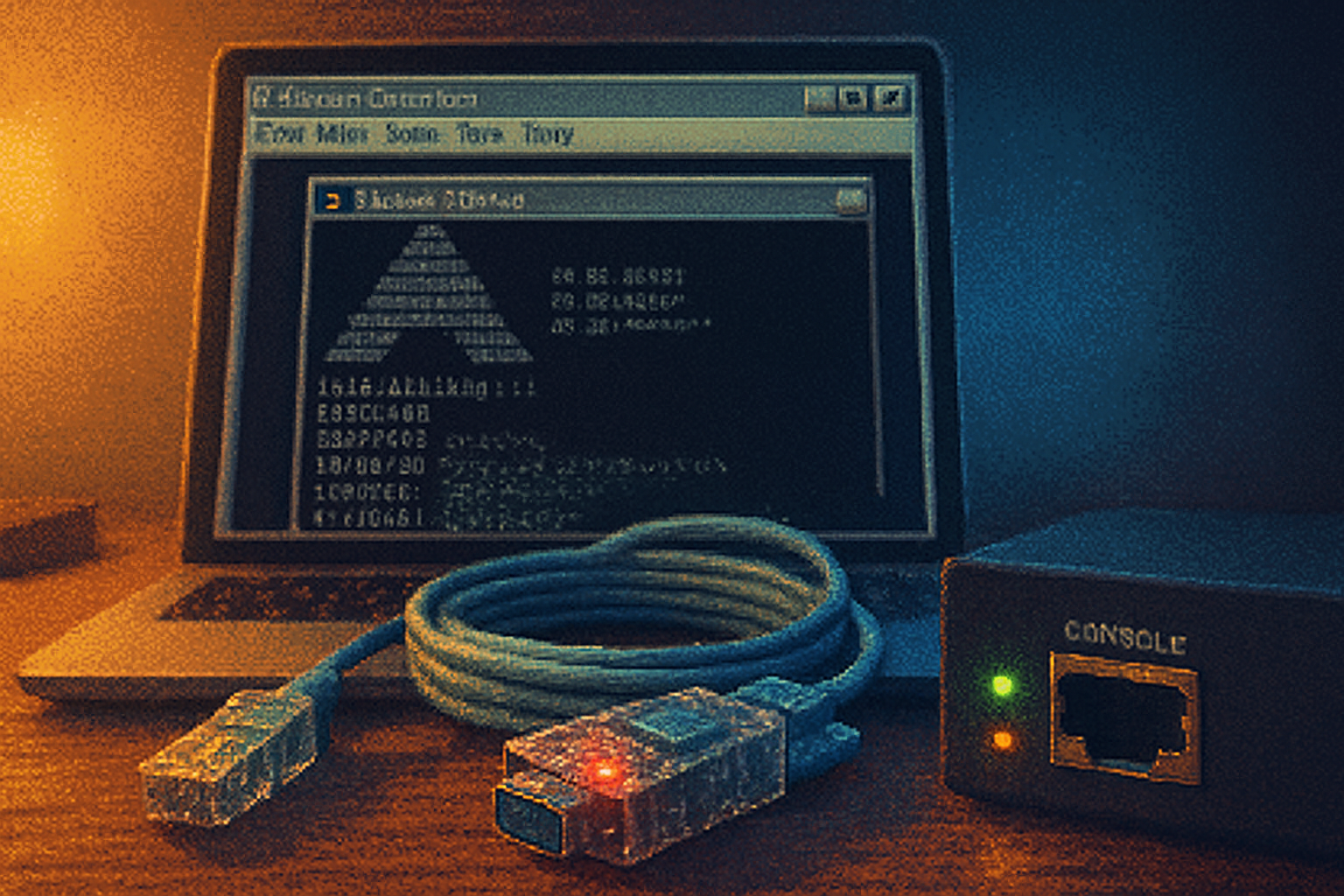
I once watched a competent sysadmin stare at a blinking router for ten minutes while a junior engineer frantically scrolled a glossy web UI. No one knew how to attach a serial cable.
The router had booted into an intractable state. No SSH, no HTTP, nothing but a console port and a faint hope. In the 1990s you’d have opened HyperTerminal and been halfway to a solution before your coffee cooled. Today the team opened Stack Overflow, refreshed the web GUI, and called the vendor. It worked out - after a support ticket, three hours, and a politely worded refund for lost productivity.
This is the story we tell ourselves: GUIs are efficient; specialists are obsolete. But are we quietly trading a generation of tactile, low-level competence for ease-of-use and dazzling font rendering?
What HyperTerminal was - and why it mattered
HyperTerminal was the small, humble bridge between you and a box that refused all higher-level protocols. Packed with Windows through XP, it did one thing: speak raw bytes over serial and modem connections. It was used to:
- Configure routers and switches through their console ports.
- Connect to modems for dial-up debugging.
- Talk to embedded boards when their network stack wasn’t working.
It was boring. It was trivial. And it taught you how computers actually talk: baud rates, parity, flow control, and the delightfully concrete smell of a failing RS-232 handshake.
Read more about HyperTerminal: https://en.wikipedia.org/wiki/HyperTerminal
Modern terminal ecosystem: prettier, more powerful - and more abstract
If HyperTerminal is a wrench, modern terminal emulators are a Swiss Army knife. The landscape now includes:
- PuTTY and KiTTY (lightweight, familiar to Windows users) - https://www.putty.org/
- Windows Terminal (tabs, themes, integrated shells) - https://learn.microsoft.com/windows/terminal/
- iTerm2 for macOS (rich features, scripting) - https://iterm2.com/
- Hyper, Alacritty, Terminus (GPU-accelerated, configurable)
- TTY programs like minicom and screen for serial connections - https://en.wikipedia.org/wiki/Minicom_(software), https://www.gnu.org/software/screen/
These tools add tabs, splits, Unicode, ligatures, shell integrations, and SSH session managers. They are delightful. They are also busy doing the thinking for you.
Function over fetish: what we gained
The gains are real and important:
- Productivity - managing multiple SSH sessions in a single, searchable window saves time.
- Consistency - cross-platform terminals standardize behavior between macOS, Linux, and Windows.
- Convenience - credential managers, profiles, and SSH-agent integrations remove friction.
- Visual affordances - copy/paste, clickable URLs, color schemes, and font rendering.
In short: we demand more from our terminals than raw bit-pumping. That’s progress.
What we lost: the tacit knowledge the GUI hides
But the GUI is also a magician’s hat. It hides the mechanics. When the trick fails, no one remembers the mechanics.
Here are concrete, recurring skills that are fading:
Serial-console literacy
- Identifying and using the right UART/RS-232/TTL voltage levels.
- Choosing the right baud rate, parity, and flow control.
- Recognizing bootloader prompts (U-Boot, GRUB) and interrupting boot.
Physical layer troubleshooting
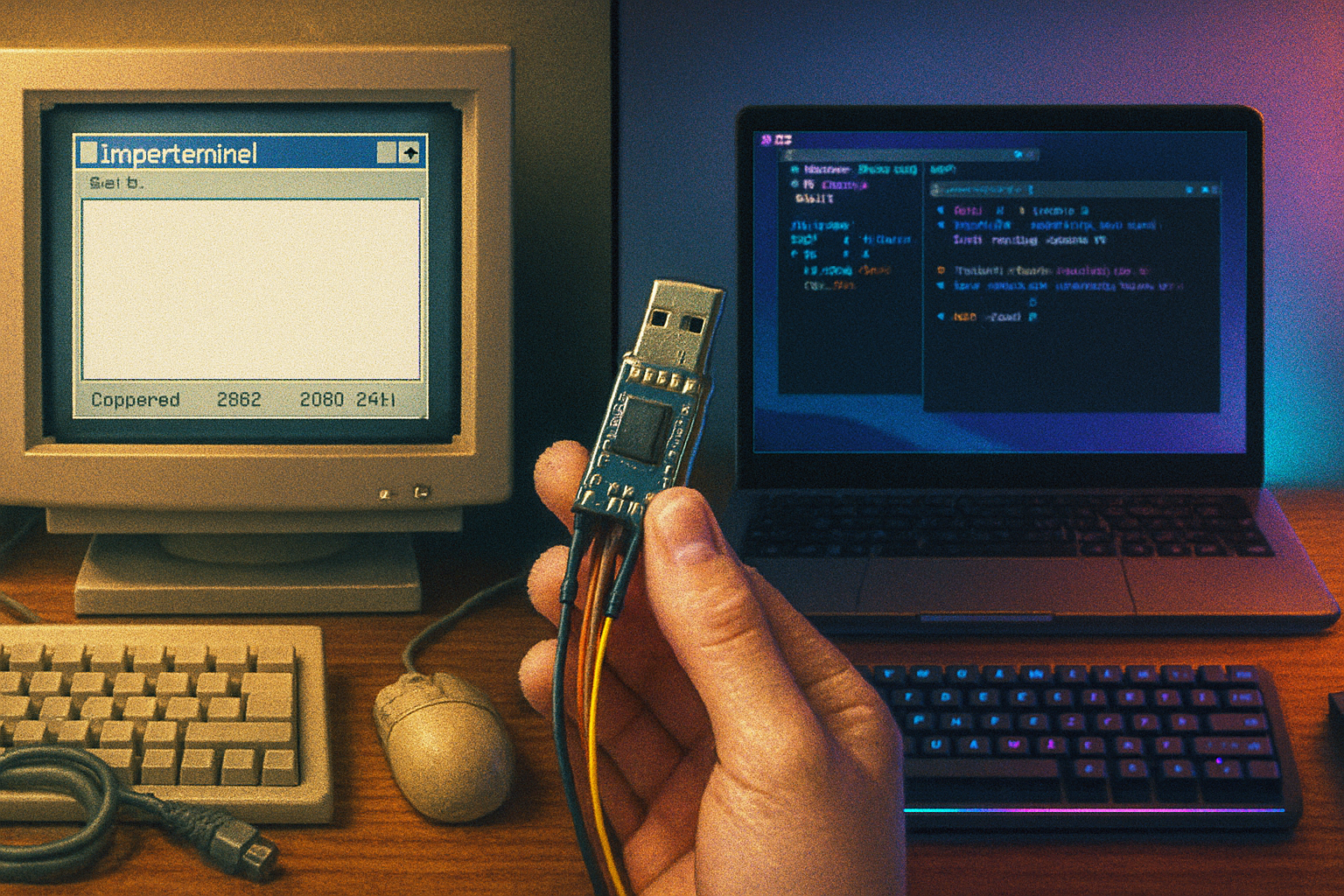
- Using a USB-to-TTL adapter, wiring TX/RX/GND correctly.
- Recognizing cable pinouts and DB9 quirks vs. TTL 4-pin headers.
Low-level recovery procedures
- Booting into single-user or rescue mode from a serial console.
- Using bootloaders to replace firmware or reset passwords.
Protocol comprehension
- Knowing the difference between Telnet and SSH and when a device only speaks raw TCP.
- Understanding XON/XOFF and hardware RTS/CTS flow control when transfers fail.
Forensic and offline debugging
- When a device’s network stack is bricked, only a serial cable or JTAG will save it.
- When a server loses network stack due to kernel panic, the serial console often reveals the crash.
These are not romanticized hobbies. They are the difference between a quick fix and a multi-hour vendor tango.
A few illustrative failures
The datacenter with a bad switch that refused management-plane packets. The solution - plug into the serial console, change the boot parameters, and restore accessibility. Someone had to physically crawl the rack.
An embedded product update that bricked devices in the field. Devices only had a TTL serial header; no USB or NIC. Teams without serial experience needed RMA after RMA.
A developer who couldn’t debug a Linux kernel oops because they trusted the VM console and never learned to attach to the machine’s serial output during early boot.
Quick survival kit: practical commands and tips
If you want to avoid being the person who opens a help ticket instead of a terminal, learn these basics.
Linux/macOS (screen):
# Connect to a USB-TTL adapter at 115200 baud
sudo screen /dev/ttyUSB0 115200

# Detach: Ctrl-a d
# Reconnect: screen -r
Linux (minicom):
sudo apt install minicom
sudo minicom -D /dev/ttyUSB0 -b 115200
Windows (PuTTY):
- Choose “Serial” and enter COM port and baud rate. PuTTY also handles telnet/SSH when you need them.
RS-232 vs TTL: know the difference. RS-232 uses inverted voltage levels and ±3–15V swing; TTL is 0–3.3V (or 0–5V). Use an appropriate adapter (e.g., FTDI for TTL, an RS-232 to USB for DB9).
If you see garbage on the console, try common baud rates: 115200, 57600, 38400, 9600.
How to teach and preserve these skills
If you run a team or teach engineers, incorporate tactile labs into onboarding and curricula:
- Have a physical bench with routers, switches, and microcontrollers. Let people break them and recover them.
- Include assignments that require serial console access (e.g., interrupt a bootloader, reflash firmware).
- Make a “rescue checklist” for on-call staff with cable pictures, common commands, and fallback procedures.
- Encourage reading packet traces (Wireshark) and serial logs as part of debugging practice - understanding the wire beats believing the GUI.
Tooling recommendations: balance, not nostalgia
You don’t need to throw away modern tools. Use them. But mix in a few old habits:
- Keep minicom/screen in your toolbox for low-level access.
- Maintain a small hardware kit - USB-to-TTL adapter, RS-232 adapter, a bag of jumper wires, and a null-modem cable.
- Use modern terminals for day-to-day work - but when failures happen, be ready to drop down to serial and the CLI.
The deeper loss: mental models, not just commands
The real alarm bell isn’t that people can’t type a screen command. It’s that fewer people grok the underlying architecture: the physical wire, the boot sequence, the idea that layers fail independently. GUI fluency confers a dangerous confidence. It lets you believe the stack is continuous and forgiving.
Technical mastery is less about memorizing esoteric flags and more about owning the model of how systems boot, initialize hardware, and negotiate with each other. That model is best built by hands-on, low-level debugging.
Final act: keep the wrench in the drawer
Modern terminal emulators are elegant instruments. They make life better. But elegance shouldn’t be an excuse for ignorance. HyperTerminal taught a generation the basics of what a computer actually sounds like when it is dying. Modern tools have largely erased that sound.
Keep an old habit. Keep a cheap USB-TTL adapter in your bag. Teach the young engineers to put their hands on the machine before they put their fingers to the keyboard. Because when networks fail, when appliances brick, and when vendors take lunch, you’ll want someone who remembers how to talk to a device in plain, unsentimental bytes.
References
- HyperTerminal - https://en.wikipedia.org/wiki/HyperTerminal
- PuTTY - https://www.putty.org/
- Windows Terminal - https://learn.microsoft.com/windows/terminal/
- minicom - https://en.wikipedia.org/wiki/Minicom_(software)
- screen - https://www.gnu.org/software/screen/
- RS-232 - https://en.wikipedia.org/wiki/RS-232