· retrotech · 7 min read
The Lost Art of WordPerfect Macros: Tapping into Automation Like It's 1995
Before ribbons, before cloud sync, there was WordPerfect macros - small, repeatable miracles that turned hours into minutes. This piece revives those techniques for modern writers: how to record, adapt, and use WordPerfect macros (with practical recipes and ready-to-use templates) to speed today's workflows.
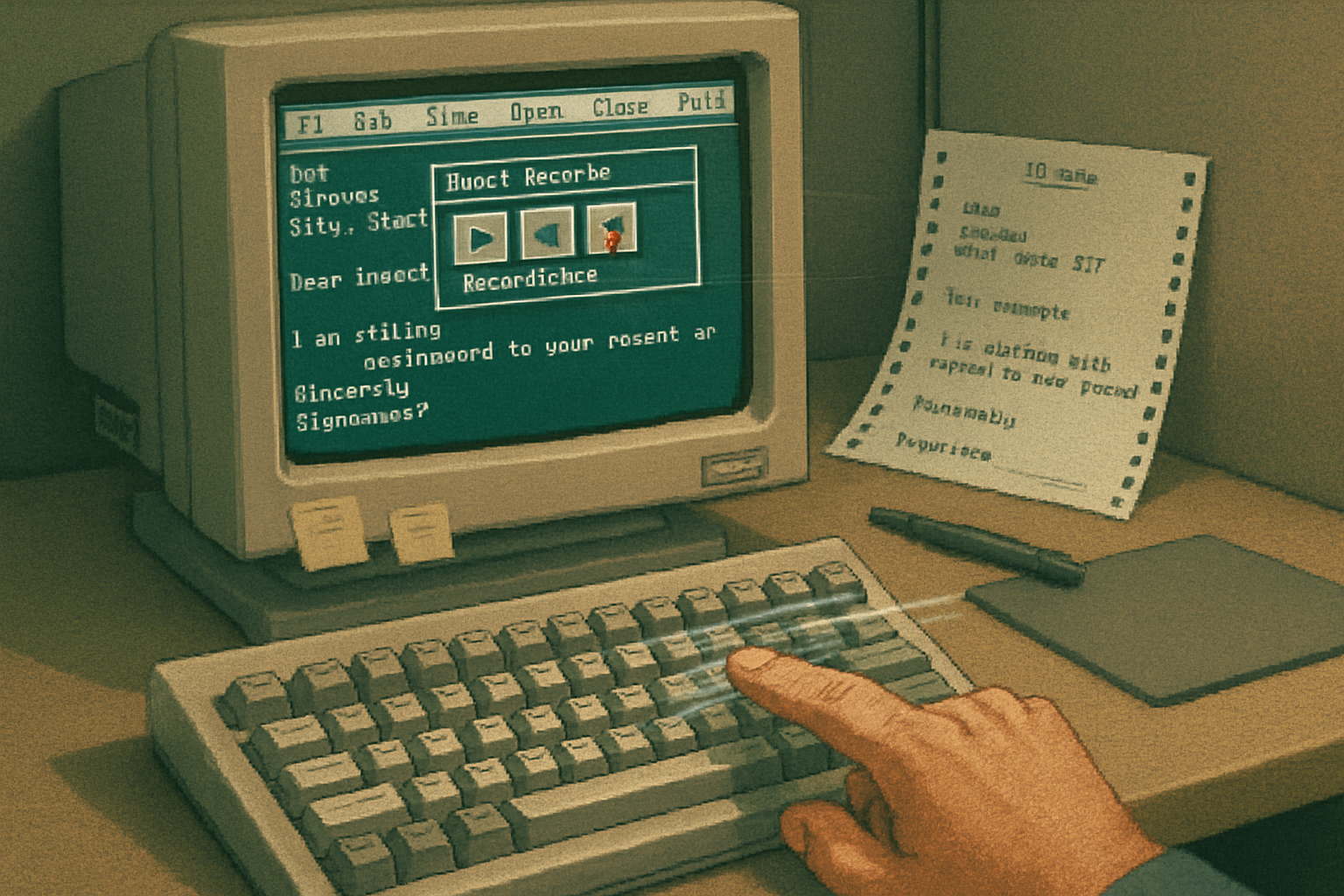
A long time ago - or at least a few file-save dialogs ago - I had a boss who believed the only worthwhile software feature was one that could be bound to a hotkey. She lived by macros. In her hands WordPerfect was less a word processor and more a hand-crafted machine gun for boring document work: endless boilerplate, legal forms, and pleadings, all produced with frightening speed.
If you grew up in Microsoft Word’s ribbon era, WordPerfect macros might look like an artifact, a curiosity in a museum case labeled: “Efficient Things People Forgot.” But that’s the point: those “archaic” tools are small, robust, privacy-friendly, and perfectly suited to the kind of repetitive writing tasks that still plague modern knowledge workers. This is a love letter to that lost art - and a practical toolkit to bring it back.
Why revisit WordPerfect macros in 2026?
- They are low-friction - record a sequence once, replay it forever. No IDE, no libraries, no package.json.
- They are fast - macros operate directly in the editor; no switching windows or piping through external scripts.
- They are private and local - unlike cloud automation, they run on your machine and live in your document store.
- They teach good habits - documenting templates, standardizing boilerplate, and extracting patterns.
In short: if your day still includes copying-and-pasting the same legal paragraph, reformatting imported text after a web-paste, or creating the same memo for different clients, macros repay the time you invest in them many times over.
Macro fundamentals (quick, non-technical primer)
- Two approaches - record a macro (you perform actions and WordPerfect captures keystrokes) or write/edit a macro (script-style). Recording is the single fastest path for most users; scripted macros are for people who want logic, loops, user prompts.
- Where macros live - saved macro files (.wcm or in older builds as .wpm/.wcm) and assignable to menus, toolbars or keyboard shortcuts.
- How to start (general) - Tools → Macros → Record New Macro. Perform the actions. Stop recording. Save and name it. Assign a shortcut if you like.
- Test aggressively - play the macro on a throwaway file first. Macros replay exact keystrokes and can be literal about cursor placement.
If you want official specifics, Corel’s support pages remain the best place to begin: https://support.corel.com/hc/en-us and for historical context, see the WordPerfect page: https://en.wikipedia.org/wiki/WordPerfect
Story-first recipe: the Boilerplate Letter macro
Imagine: three clients, three addresses, identical body text. You manually type the header and sign-off each time. Or - you press Alt+Shift+B and the skeleton appears, leaving two placeholders (client name, date) to fill.
How to make it (recording method):
- Tools → Macros → Record New Macro.
- Type the standardized letter header (your company name, return address) and a blank template with placeholders like [CLIENT NAME] and [DATE].
- Insert your standard sign-off and signature line.
- Stop recording and save as “Boilerplate_Letter.wcm”.
- Assign a keyboard shortcut (Tools → Customize → Keyboard) or put it on your macros toolbar.
Why this beats canned templates: you can include cursor placements (tab to client field), automatic date insertion if you choose to add it while recording, and you can adapt quickly for different clients without navigating templates menus.
Boilerplate Letter (text you can paste into a document while recording)
[DATE]

[CLIENT NAME]
[CLIENT ADDRESS LINE 1]
[CLIENT ADDRESS LINE 2]

Re: [SHORT SUBJECT LINE]

Dear [CLIENT NAME],

This letter confirms the arrangement described below. Please review and let us know if any adjustments are necessary.

[Insert body here]

Sincerely,

[YOUR NAME]
[YOUR TITLE]
Record inserting that block and leave the cursor at the first placeholder. When replayed, Tab or several keystrokes will move you through fields depending on how you recorded it.
A macro for messy pastes: “Clean-Paste”
The web pastes like a jealous lover: broken lines, smart quotes that belong in a Victorian novel, and double spaces after periods. Use a macro to turn chaos into clean text.
What to record (high level):
- Paste clipboard contents into a fresh document.
- Use Replace to - convert smart quotes to straight (if you prefer), replace tabs with single spaces, convert multiple spaces to single spaces, and fix line breaks (join lines into paragraphs where needed).
- Reflow (Format → Reformat Paragraph or ¶ reflow command).
- Normalize punctuation spacing (replace “. ” with ”. ”).
Recording notes:
- Do the Replace operations one after another while recording. Use the WordPerfect find/replace dialog in each step.
- Test on different pasted texts - web HTML vs. PDF copypaste produce different artifacts.
Why this matters: saves 30–90 seconds per paste. Over a day with 20 web clippings? That adds up.
For the power user: pseudo-script macro with prompts
If you know your way around script-style macros (PerfectScript/WordPerfect macro language), you can add conditional logic: ask the user whether to insert a header, request a client name, or loop through open documents and export PDFs.
Example logic (pseudo-code, safe to adapt in the editor):
Prompt user for CLIENT_NAME and INCLUDE_HEADER (Y/N)
If INCLUDE_HEADER = Y then
  Insert header block and position cursor
EndIf
Insert date at cursor
Insert body template
If user requests, save a copy as PDF to specified folder
Use the macro editor’s help to map these conceptual operations to the actual PerfectScript commands. Recording a macro that contains user prompts and then editing it in the macro editor is a reliable way to produce working code.
Templates you can paste now (for writers and bloggers)
Below are simple skeletons you can paste into a document and make into macros by recording their insertion.
Blog post skeleton (Markdown-friendly):
Title:
Tags:
Date:

## Lead / Anecdote


## The Problem


## Quick Answer / TL;DR


## Steps / How to do it

1.
2.
3.

## Examples


## Closing / CTA


---
Author: [Your name]
Legal pleading skeleton (short form):
COURT: [Court name]
CASE NO: [Case number]
PARTIES: [Plaintiff] v. [Defendant]

[CAPTION]

COMES NOW [Attorney name], and for the reasons set forth below, respectfully moves the Court to ...

STATEMENT OF FACTS

ARGUMENT

CONCLUSION

Respectfully submitted,

[Attorney signature block]
Both of these are worth making macros for: insert the skeleton and place the cursor in the first field.
Integrating WordPerfect macros with modern workflows
- Markdown and Git - Use a macro to insert a Markdown skeleton, then save the file as plain text and drop it in your Git repo. Macros help you quickly standardize front matter.
- PDF exports - Record a macro that performs File → Publish to PDF with your preferred settings and names files with the document title or a client field.
- Batch work - If you often run the same operations on multiple open documents, record a macro that loops through “Next Document” and performs the task. For scripted macros, you can add a simple loop.
- Interoperability - Use macros to normalize document text before passing it to an external tool (e.g., remove manual line breaks and weird punctuation before running a spell-checker or a script).
Troubleshooting and best practices
- Record deliberately - when recording, pause briefly between meaningful actions. The recorder captures what you do; extra micro-gestures can produce brittle macros.
- Use placeholders - record text like [CLIENT] and always tab or move to that spot after playback so you can type quickly.
- Save versions - when you edit a macro, save a copy. Macros can behave unexpectedly on new documents.
- Document macros - keep a small README or comments (if your macro format supports them). A decade later your future self will thank present-you for the explanation.
- Portability - if you share macros with colleagues, include instructions for installing and assigning keyboard shortcuts.
A small catalogue of macro ideas (copy, adapt, use)
- Boilerplate letter with date placeholder
- Clean-Paste - normalize pasted text
- Markdown skeleton inserter
- Convert styled lists to plain bullet lists (useful when converting PDFs)
- Quick header/footer with page numbering that follows a client naming convention
- Batch PDF exporter with file naming by document title
The moral: old tools are often robust tools
Macro culture in WordPerfect taught a habit: look for repetition and eliminate it. Today we fetishize integrations and API calls, but the humble macro does a lot of heavy lifting with very little ceremony.
If you have one repetitive writing task you do more than twice a week, invest five minutes in capturing it as a macro. The result is not merely time saved; it’s a small act of mastery over the dullness that eats creative time.
And if anyone mocks you for automating the boring bits, hand them a stack of error-free documents and a stopwatch.
References
- WordPerfect (history and context): https://en.wikipedia.org/wiki/WordPerfect
- Corel Support (start here for official macro documentation and version-specific guidance): https://support.corel.com/hc/en-us