· retrotech · 6 min read
Netscape Navigator Themes: Designing Your Own Retro Browser Experience
A hands-on, nostalgic guide to building Netscape-inspired themes and page skins for modern browsers. Includes palettes, assets, manifest examples, userChrome/userContent tips, Stylus snippets, and publishing notes.
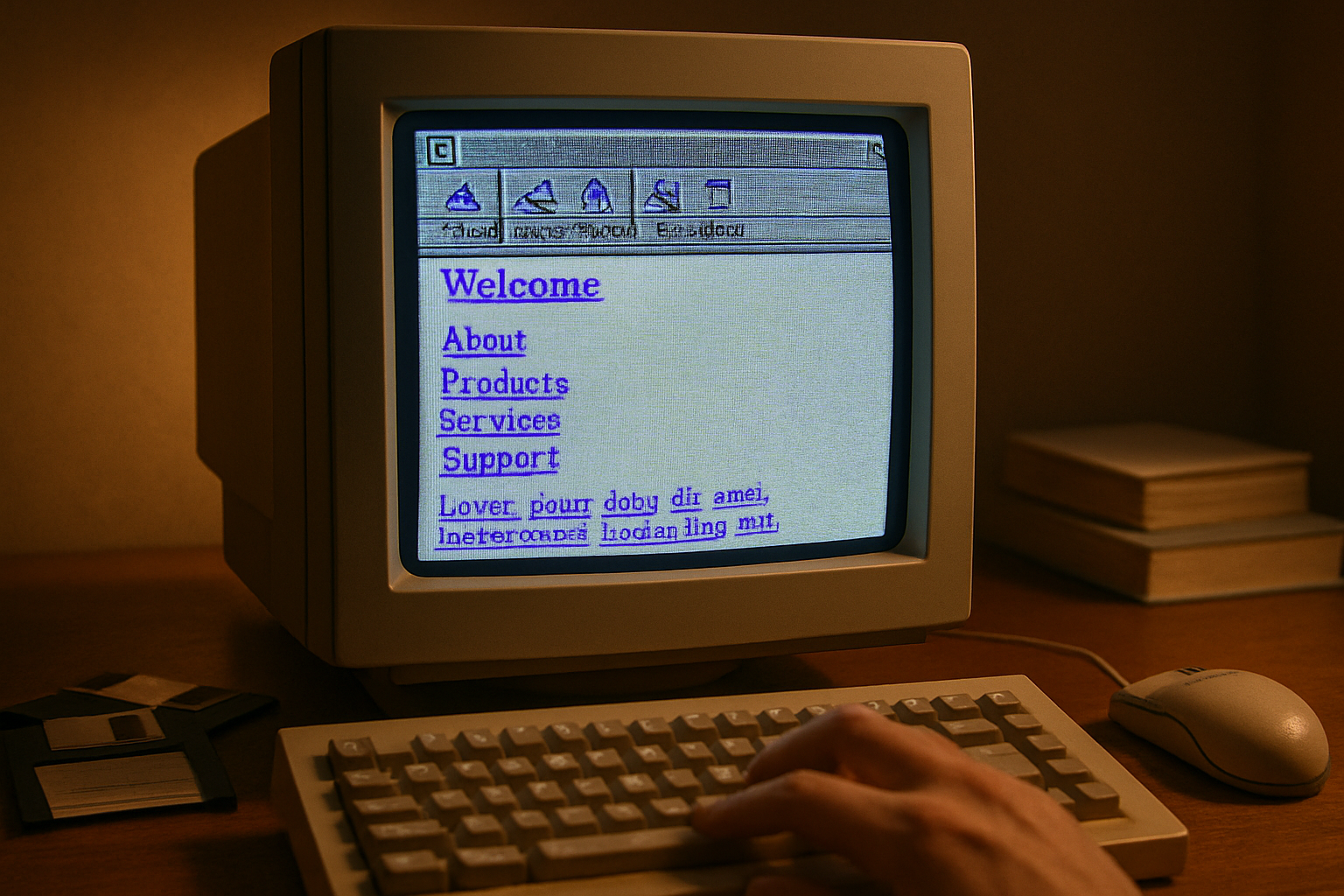
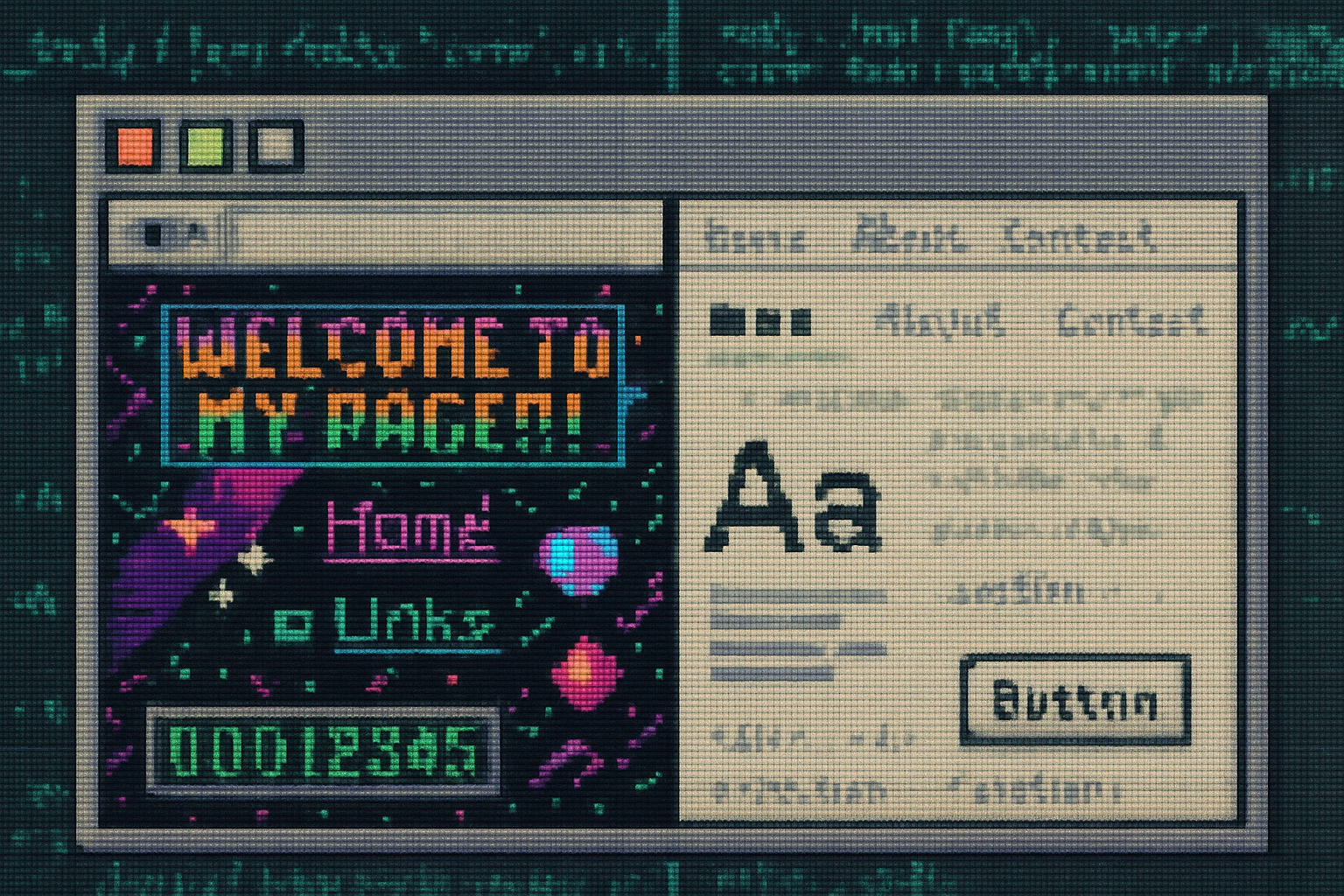
It was 1996. You launched the browser and a small, arrogant globe blinked at you with a tiny serif “N.” The toolbar wore beveled buttons like jewelry; links were a religious blue; every scrollbar had a slightly embarrassed glow. Netscape Navigator didn’t just show webpages. It announced them.
If you miss that clunky theater of chrome and pixel, this guide is for you. We’ll walk through how to create modern browser themes and page skins that channel the Netscape vibe - the colors, the textures, the faux-3D buttons - while using today’s extension and stylesheet tooling.
Why bother? Because design is a time machine. A well-made theme can turn the banal task of opening a tab into a tiny ritual. Also: nothing says “I’m a person who remembers the 90s” like animated GIFs on your New Tab page.
How this guide is organized
- Quick anatomy of a Netscape-like UI
- Palette, fonts, and asset recipes (what to make and how)
- Build a theme - Chrome and Firefox manifests (copy-paste examples)
- Make webpages look retro with Stylus (CSS snippets)
- Advanced - userChrome.css for power users
- Packaging, testing, publishing, and troubleshooting
The aesthetic - what to copy (and what to avoid)
Netscape’s personality checklist:
- Muted grays and industrial blues
- Beveled/embossed buttons and borders
- Textured backgrounds (noise, tiled gradients) rather than flat color
- Bright link colors (blue for unvisited, purple for visited)
- Small, dense UI type (Verdana/Tahoma vibes)
- Little decorative elements - separators, small logo badges
Do not: recreate UI text verbatim from a proprietary product (logos are trademarked). Do not over-animate. Subtlety is a virtue, even in kitsch.
Palette & fonts - starter kits
Palette (retro base):
- Toolbar background - #C0C0C0 (light chrome)
- Frame / titlebar - #6B6B6B (steel gray)
- Button bevel highlights - #FFFFFF (white)
- Button bevel shadows - #5A5A5A
- Link color - #0000EE (classic link blue)
- Visited link - #551A8B (royal purple)
- Window background - #E6E6E6
Fonts:
Netscape’s UI felt like Tahoma/Verdana. For a retro-but-legal look:
- Sans - Verdana, Tahoma, or Trebuchet MS
- Pixel/terminal flavor (for flair) - Press Start 2P, VT323 (Google Fonts)
Resources: use Google Fonts for free retro-ish fonts.
Assets: what to create
- toolbar.png - a narrow horizontal tile (height ~ 36–48px) to repeat across the toolbar
- frame.png - a larger image used for top chrome (optional)
- ntp_background.png - New Tab background (1024×768 or repeat tile)
- small icons - 16×16 or 24×24 PNGs with slight pixel hinting
- favicon / logo - 128×128 PNG for extension listing
Tips:
- Keep toolbar textures vertically small so they repeat convincingly.
- Save images as PNG with indexed palette for a slightly retro dithering.
- Add subtle scanline or noise overlays (1–2% opacity) to simulate CRT grit.
Tools: GIMP, Photoshop, Aseprite (for pixel-perfect icons), and free generators for GIFs. For reference screenshots of old Netscape UI, see the Wikipedia entry and archived screenshots on the Internet Archive.
- Netscape Navigator (history): https://en.wikipedia.org/wiki/Netscape_Navigator
- Archive of old pages and screenshots: https://archive.org
Build a theme: Chrome (Chromium-based) example
Chrome themes are packaged as extensions and declared in manifest.json. Drop your images in an images/ folder and use this minimal manifest as a starting point.
{
  "manifest_version": 3,
  "name": "Netscape Retro Theme",
  "version": "1.0",
  "description": "A retro Netscape-style theme with beveled chrome and old-school colors.",
  "theme": {
    "images": {
      "theme_frame": "images/frame.png",
      "theme_toolbar": "images/toolbar.png",
      "theme_ntp_background": "images/ntp_background.png"
    },
    "colors": {
      "frame": [107, 107, 107],
      "toolbar": [192, 192, 192],
      "tab_text": [255, 255, 255],
      "bookmark_text": [0, 0, 0],
      "ntp_text": [0, 0, 0]
    },
    "properties": {
      "ntp_background_alignment": "top",
      "ntp_background_repeat": "repeat"
    }
  }
}
How to load for testing:
- Open chrome://extensions
- Toggle Developer mode on
- Click “Load unpacked” and select the folder with your manifest.json
Reference docs: https://developer.chrome.com/docs/extensions/mv3/themes/
Build a theme: Firefox example
Firefox supports themes via the WebExtensions theme key in manifest.json. Here’s a simple example compatible with Firefox.
{
  "manifest_version": 2,
  "name": "Netscape Retro Theme",
  "version": "1.0",
  "theme": {
    "images": {
      "headerURL": "images/header.png"
    },
    "colors": {
      "accentcolor": "#6B6B6B",
      "textcolor": "#FFFFFF",
      "toolbar": "#C0C0C0",
      "toolbar_text": "#000000"
    }
  }
}
How to load for testing:
- Open about:debugging#/runtime/this-firefox
- Click “Load Temporary Add-on” and select your manifest.json
Docs: https://developer.mozilla.org/en-US/docs/Mozilla/Add-ons/WebExtensions/manifest.json/theme
Make webpages feel like Netscape: Stylus and page CSS
Browser themes affect chrome (toolbars, frame). To make actual webpages wear Netscape clothing, use a user-style extension like Stylus (or write an extension that injects CSS). Stylus lets you write CSS that applies to all pages or domains.
Example Stylus (or userContent.css) snippet to force Nineties page styling:
/* Put this in Stylus as a global style */
html,
body {
  background: #e6e6e6 url('data:image/png;base64,...') repeat; /* subtle gray tile */
  color: #000;
  font-family: 'Verdana', 'Tahoma', sans-serif !important;
}
a:link {
  color: #0000ee !important;
}
a:visited {
  color: #551a8b !important;
}
button,
input[type='button'],
input[type='submit'] {
  background: linear-gradient(#ffffff, #bfbfbf) !important;
  border: 2px solid #ffffff !important;
  box-shadow:
    inset 0 1px 0 rgba(255, 255, 255, 0.6),
    0 1px 0 rgba(0, 0, 0, 0.2) !important;
  padding: 4px 10px !important;
}
/* Retro scrollbars - Chromium browsers */
::-webkit-scrollbar {
  height: 12px;
  width: 12px;
}
::-webkit-scrollbar-track {
  background: #dcdcdc;
}
::-webkit-scrollbar-thumb {
  background: linear-gradient(#b0b0b0, #7a7a7a);
  border: 1px solid #fff;
}
Stylus: https://add0n.com/stylus.html
Note: Firefox uses a different scrollbar API - use scrollbar-color and scrollbar-width for decent results.
userChrome.css for the obsessive (Firefox only)
If you want to change the browser UI beyond theme keys (for example, add bevels, change the tab radius, or reposition icons), userChrome.css is the way. This is a file placed in your Firefox profile when toolkit.legacyUserProfileCustomizations.stylesheets is set to true in about:config.
Minimal example to add a beveled toolbar effect:
/* userChrome.css */
#navigator-toolbox {
  background: linear-gradient(#ededed, #bfbfbf) !important;
  border-bottom: 2px solid #ffffff !important;
}
#TabsToolbar {
  background-image: url('chrome://branding/content/browser/header.png') !important;
  min-height: 36px !important;
}
.tabbrowser-tab .tab-background {
  border: 1px solid #ffffff !important;
  box-shadow:
    inset 0 1px 0 rgba(255, 255, 255, 0.8),
    0 1px 0 rgba(0, 0, 0, 0.25) !important;
}
How to enable: set toolkit.legacyUserProfileCustomizations.stylesheets to true in about:config, then place userChrome.css in the chrome/ folder of your profile. Restart.
Docs: https://developer.mozilla.org/en-US/docs/Mozilla/Firefox/Customizing_Firefox_using_userChrome.css
Packaging and publishing
Chrome:
- Zip your extension folder (manifest + images)
- Publish via the Chrome Web Store developer dashboard (one-time registration fee)
- Tests - lint via Chrome’s extension upload tool
Firefox:
- Zip and submit to Mozilla Add-ons (AMO)
- You can publish as a self-hosted add-on for easier distribution
Checklist before publishing:
- Remove any trademarked logos (or seek permission)
- Ensure descriptions and screenshots accurately represent the theme
- Provide an easy “how to uninstall” note
Troubleshooting quick hits
- Manifest errors on load - check JSON syntax and property names
- Images not repeating - set
- Fonts not applied to page content - you need Stylus/userContent styles; themes alone don’t change page fonts
- userChrome.css changes not visible - make sure
Inspiration and references
- Chrome themes guide: https://developer.chrome.com/docs/extensions/mv3/themes/
- Firefox theme docs: https://developer.mozilla.org/en-US/docs/Mozilla/Add-ons/WebExtensions/manifest.json/theme
- Stylus extension (user styles): https://add0n.com/stylus.html
- Netscape history: https://en.wikipedia.org/wiki/Netscape_Navigator
Final notes - make it yours
There’s a thin line between homage and cosplay. You’re not recreating Netscape for historical accuracy tests; you’re borrowing a mood and making your daily tool more pleasurable. Use the palette as a starting point, not a law. Add a tasteful animated GIF behind your New Tab if your day calls for it.
Make one for yourself. Then, three months later, someone will open your browser and feel an odd, tangible nostalgia. That’s the reward.