· retrotech · 7 min read
Building a Sinclair QL Emulation: A Step-by-Step Guide
A practical, story-driven walkthrough for recreating the Sinclair QL on modern machines. Covers emulator choices, ROM/legal notes, installation, configuration, disk images, performance tweaks, and community resources.
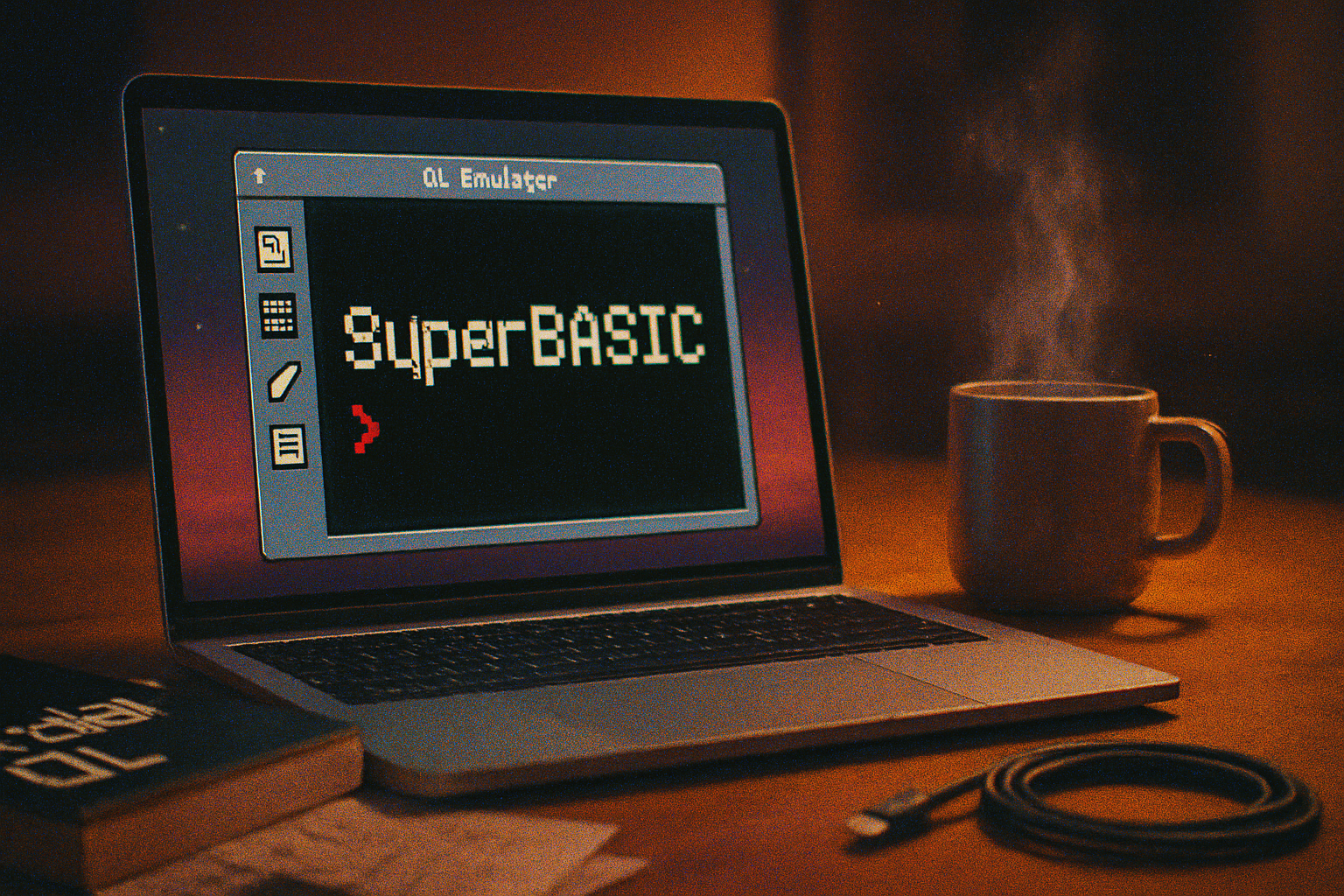
I still remember the first time I saw a Sinclair QL desktop appear on a modern laptop screen - a squat blocky cursor and a promise of SuperBASIC waiting to be coaxed back to life. It’s funny: something so fragile-looking in 1984 now fits inside a single process and a few megabytes of disk image. But nostalgia is not the point. Emulation is a cheap, precise way to understand why those machines behaved the way they did - and to run the software that taught a generation to think like programmers.
This guide walks you through emulating a Sinclair QL: what to choose, how to configure it, how to get software running, and where to go when the screen goes yellow and refuses to boot. I assume you know how to download files and run simple commands. No soldering irons required.
Quick orientation: what we mean by “QL emulation”
The Sinclair QL (Quantum Leap) is a 68k-based microcomputer introduced in 1984. Emulation here means two things:
- Emulating the hardware (68008 CPU, memory map, video, I/O) so the original software runs unchanged.
- Running QL-native operating systems like QDOS/SMSQ/E and applications from disk images or packages.
If you want a faithful, fast, reasonably compatible experience on Windows, macOS, Linux, or even a browser, there are a few mature emulators and OS ports to choose from.
Useful background reading: the Sinclair QL overview and SMSQ/E explanation:
- Sinclair QL (Wikipedia): https://en.wikipedia.org/wiki/Sinclair_QL
- SMSQ/E (Wikipedia): https://en.wikipedia.org/wiki/SMSQ/E
Pick the right emulator (short guide)
- SMSQmulator - Very flexible - Java-based, runs on Windows/Linux/macOS, and has ports to web/Android. Good SMSQ/E support and easy disk image handling.
- uQLX - Classic POSIX emulator that integrates nicely with Linux and macOS desktops; good if you prefer a native feel. (Search for uQLX packages or forks on GitHub.)
- QPC2 / QPC - Historically the go-to Windows emulator (check community forums for the latest builds).
Community hubs like the QL Forum and QLWiki are invaluable when choosing an emulator or hunting for disk images:
- QL Forum: https://qlforum.co.uk/
- QLWiki: https://www.qlwiki.info/
Why these three? Because they balance compatibility, ease of use, and active community support. If you’re on Linux or macOS and like the terminal, uQLX is tidy. If you want something cross-platform and forgiving, SMSQmulator is the easiest route.
Legal and practical prerequisites
- ROMs - Most emulators need a QL ROM (the system firmware). Legally you should either dump this from hardware you own or use a compatible replacement distributed by the community with permission. Check the emulator documentation and community forums for legally available options.
- Disk images - Classic QL software is typically distributed as disk images (.img, .adf-like formats, or emulator-specific containers). Many old utilities and demos are archived by the community.
- SMSQ/E or alternative OS - SMSQ/E is the modern, updated QDOS-compatible OS widely used in emulation. It’s often distributed alongside emulator packages or available from community sites.
A friendly, if dull, truth: you can get everything working faster if you already have a set of QL disk images and a ROM. If you don’t, the community resources linked above are where people trade pointers about legitimately available software.
Step-by-step: SMSQmulator on Windows/macOS/Linux (recommended starter path)
This walkthrough uses SMSQmulator because it’s cross-platform and user-friendly.
- Download the emulator
- Grab the latest SMSQmulator package from SourceForge: https://sourceforge.net/projects/smsqmulator/
- Install Java if needed
- SMSQmulator is Java-based. Ensure you have a modern Java runtime (OpenJDK or Oracle JRE). On Windows/macOS this is typically a one-click install; on Linux, use your package manager.
- Obtain ROM and OS files
- Place your QL ROM image (if required) and an SMSQ/E image in a single folder. SMSQmulator documentation will list the exact filenames it expects; many distributions include example filenames and scripts.
- Unpack and configure
- Unzip SMSQmulator into a folder.
- Open the configuration file or the emulator’s GUI. Typical settings to check:
- Path to ROM image
- Path to boot disk image (SMSQ/E)
- Memory size (set to a value consistent with the original QL or larger if the emulator supports it)
- Keyboard mapping (map your modern keys to classic QL keys)
- Start the emulator
- Run the provided launcher (usually a shell/batch script or a Java jar). You should see the QL boot sequence and, if everything is correct, SuperBASIC prompt or the SMSQ/E desktop.
- Mount disk images and install software
- Use the emulator GUI to attach disk images to drive 1/2 (or device names the emulator uses). Typical workflow:
- Attach disk image -> reset the machine -> boot from disk
- Copy files from image to virtual hard disk if the emulator supports one
- Save your configuration and snapshots
- Create snapshots or save states after a clean boot. This lets you restart mid-session without repeated setup.
Example: running uQLX (Linux/macOS) - quick notes
uQLX is a native emulator that integrates well with X11/Wayland (Linux) or XQuartz (macOS). Typical steps:
- Install uQLX via package manager or compile from source (search GitHub repositories or distribution packages).
- Place the ROM and disk images in a folder.
- Launch with a command like:
uqlx -rom /path/to/ql.rom /path/to/smsqe.dsk(Exact flags vary by build; read the emulator’s README.)
uQLX tends to behave like a native app: use window controls, clipboard integration (if supported), and X keymaps for function keys.
Disk images, filesystems, and transferring files
- Image types - You’ll encounter raw disk images, HFE images, or emulator-specific containers (.img, .dsk, .rom, .qla). SMSQmulator usually accepts a broad set; uQLX expects classic formats.
- Copying files in - Many emulators provide virtual drive mounting or simple file transfer tools. If not, create disk images on a QL in the emulator and write files into them via emulated copying.
- Converting modern files - Community tools exist to convert between QL file formats and PC-friendly formats; check QLWiki and the QL Forum.
Running classic software and development tools
- SuperBASIC is included with the QL ROM; it’s the fastest way to poke around.
- Many classic applications (word processors, spreadsheets, Pascal/assembler tools) run under SMSQ/E. The community has archives with runnable images.
- If you want to develop native QL software, look for cross-assemblers and cross-compilers in the community; some people prefer to develop on modern machines and transfer binaries to the emulated QL.
Troubleshooting common issues
- Emulator won’t boot or shows a ROM checksum error - verify the ROM image is correct and compatible with the emulator. Some emulators require specific ROM versions.
- Keyboard mappings wrong - most have keymap settings; remap function keys and cursor keys. Check locale settings on your host OS - international keyboards can complicate mappings.
- Disk images not recognized - ensure you’re using the correct image format; try converting or using a different image file.
- Slow performance - enable host CPU acceleration if the emulator supports it, give the emulator more memory, or use a native build (uQLX) instead of Java if necessary.
Tips, tweaks, and power-user moves
- Use host clipboard integration to copy/paste text where supported.
- Create an emulator “golden image” - a saved snapshot with SMSQ/E and your favorite apps preinstalled, then clone that for experiments.
- If you want to script behavior or automate booting, check whether your emulator accepts command-line flags or startup scripts.
- Consider running SMSQ/E on top of a virtual hard disk image for a more desktop-like experience (faster load times than floppy images).
Community, archives, and where to go next
- QL Forum (forum discussions, download pointers): https://qlforum.co.uk/
- QLWiki (software lists, how-tos): https://www.qlwiki.info/
- SMSQmulator project (download and documentation): https://sourceforge.net/projects/smsqmulator/
If you want to explore beyond emulation, the QL community maintains hardware projects - serial adapters, mass storage interfaces, and SD-card expansions for original hardware - but that’s a separate rabbit hole.
Final words (and a small moral)
Emulating the Sinclair QL is less about preserving a machine and more about preserving the lessons it taught: resource frugality, surprising elegance in small machines, and the joy of making something archaic spring to life on modern silicon. You’ll laugh at its limits, admire its quirks, and maybe write a tiny SuperBASIC script that will make you feel smarter than you did at breakfast. That’s the whole point.