· retrotech · 8 min read
Beyond the Playlist: The Story of Windows Media Player’s Hidden Features
A nostalgic deep-dive into the unexpectedly powerful - and often overlooked - features of classic Windows Media Player. Learn how visualizations, auto playlists, library tricks, and streaming tools can make you see this old player with fresh eyes.
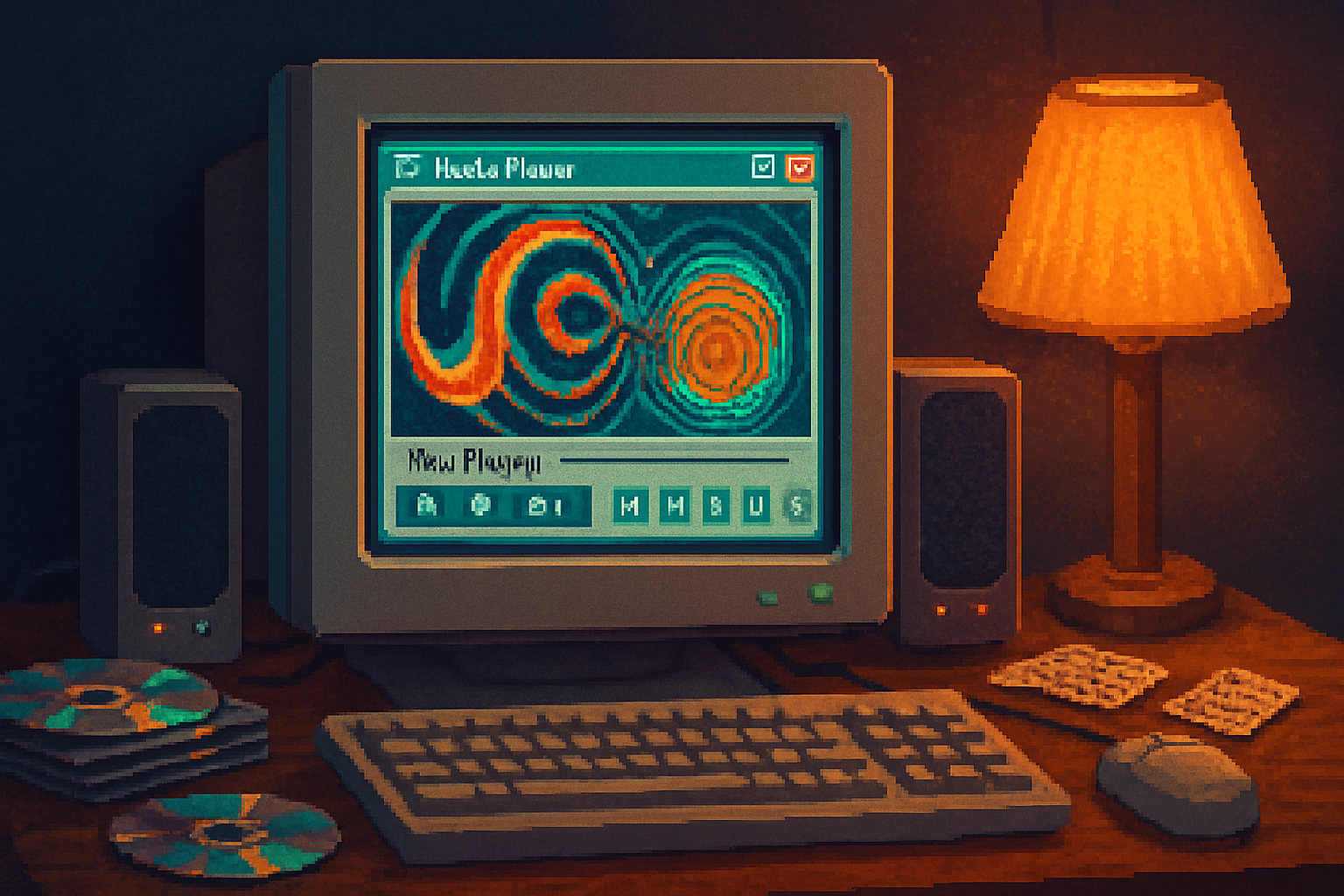
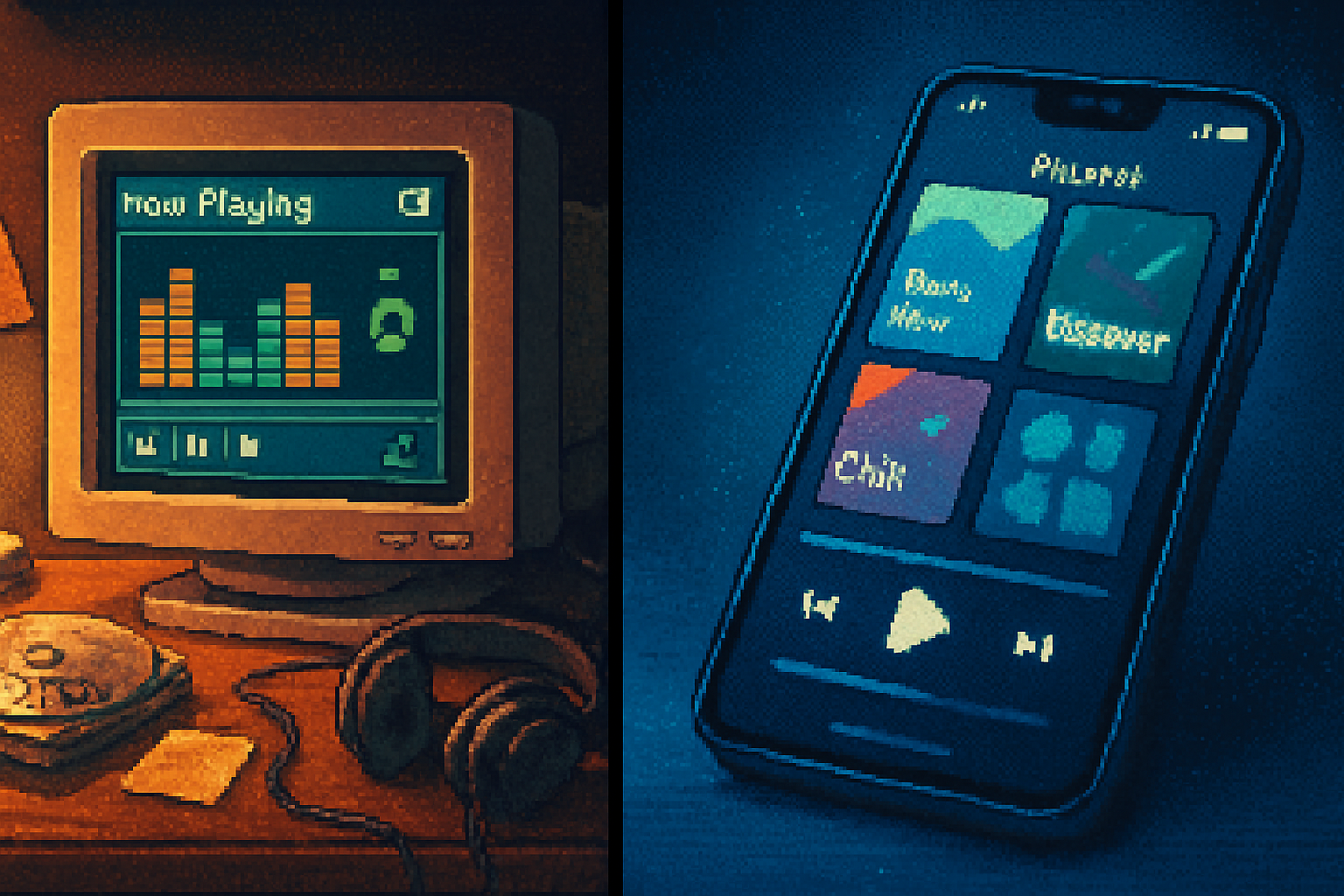
I remember sitting in a dim bedroom in 2003, eyes glued to a jittery, hall-of-mirrors visualization as whatever abhorrent pop song of the week thudded from my speakers. The colors pulsed. I felt important. Then Windows Media Player went silent - literally and culturally - as streaming apps rose and skins went out of fashion.
But silence is deceptive. Under the glossy minimalism of modern players lies a workhorse: Windows Media Player (WMP). If you last used it to burn an MP3 CD and never looked again, you missed a surprising suite of tools that turned a simple player into a lightweight media workstation. This is a guided tour of the overlooked, the retro-cool, and the quietly powerful things WMP can still do.
The case for revisiting an old friend
Windows Media Player is not glamorous. It never was. But it was ubiquitous, and ubiquity means subtle features accumulated: visualization engines, auto-generated playlists, a monitored library, ripping and burning options, and early streaming (UPnP/DLNA). Much of that functionality is buried under menus and defaults that assume you won’t look. That’s convenient, because discovering it feels like reclaiming a small private museum.
If you want a quick refresher on the app’s place in computing history, see the official overview: Windows Media Player - Wikipedia. If you’re a tinkerer or developer curious about the visualization/plugin architecture, Microsoft’s docs are worth a peek: Windows Media Player SDK - Microsoft Learn.
Visualizations: not just pretty noise
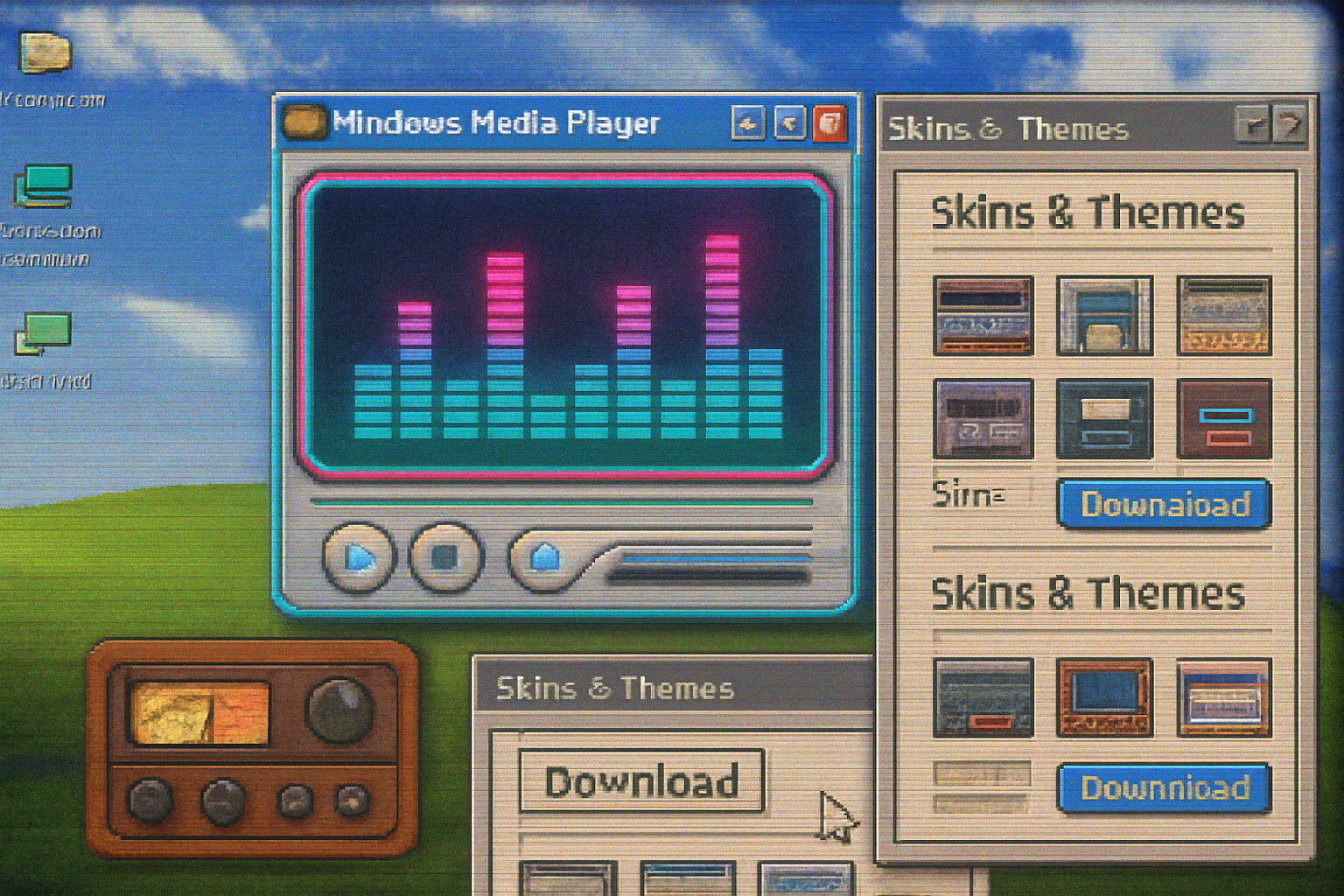
Visualizations are the photographic negatives of an era where displays were cheap and attention was cheap-lender interest. They’re dismissed as gimmicks, but they’re a rich seam of DSP and creative coding.
What you probably remember:
- The built-in visualizations (color bars, ripple effects, spinning abstractions).
- The trance-like experience of watching something respond to a bass drop.
What you may not remember you could do:
- Download or install extra visualization plugins that expanded styles beyond the defaults.
- Customize visualization settings (number of bands, color schemes, sensitivity) through the visualization menu when in Now Playing mode.
- Use visualizations as a screensaver substitute for parties or as an ambient display while you work.
Why it matters: visualizations are simply algorithms mapping audio features to graphics. Tinker with them and you’ll start to hear what your music is doing - the beats that matter, the frequency ranges that dominate - which is useful when curating or mastering playlists.
Tip: open Now Playing, right-click the visualization area to see available visualizations. If “More visualizations” is available, that will historically take you to additional downloads or third-party plugins (the ecosystem matured around the WMP visualization API described in the SDK above).
Auto Playlists: tiny DJs you’ll actually trust
WMP’s Auto Playlist feature is the understated ancestor to algorithmic playlists. It’s rule-based - not mystical - and that’s its strength. You set criteria and WMP builds the list for you.
Practical uses:
- Make a “Top rated party” playlist - Rating is 4 stars or more, played less than 5 times - shuffle.
- Build a “Long drives” playlist - Track length > 5 minutes, audio bitrate > 192kbps.
- Create a “Weekly discovery” list from a folder you drop new tracks into.
How to start: go to your Library and look for “Create Auto Playlist” (or similar wording in Library view), then add rules (artist, genre, rating, play count, etc.). Save and watch it refresh as your library changes.
Why it’s underrated: unlike purely opaque recommendations, auto playlists make their logic explicit. You can craft constraints that actually match an occasion.
The library: watched folders, rebuilds, and surgical fixes
WMP’s library is not just a list - it’s a file-watching service, a search engine, and a fragile database all at once.
Handy features:
- Monitored (watched) folders - tell WMP which folders to scan and it will keep the library updated as new files appear.
- Manage Libraries - use Tools > Manage Libraries (Music / Videos / Pictures) to add or remove locations.
- Filters and views - quickly filter by artist, album, genre, year.
Troubleshooting and power moves:
- Rebuild the database if your library is corrupted or duplicates appear. WMP stores the library database in a user AppData folder; deleting the database files forces WMP to rescan. (Backup first; this will remove saved playlists and history until WMP rebuilds.)
- Use the search box and column filters to find bad or duplicate metadata and fix it in bulk.
A word of caution: the library is picky about metadata; invest five minutes in cleaning tags and WMP will serve better playlists, smarter sorting, and correct album art.
Album art and “Find album info” tricks
Album art is the single most visceral thing you can change to make a digital collection feel owned rather than catalogued. WMP had two unobtrusive but powerful features:
- Right-click a track or album and choose “Find album info” to let WMP query online databases and fill in missing metadata.
- Drag an image from your browser or file manager directly onto an album in the Library to embed new cover art.
Pro tip: WMP stores album art inside its library database (and sometimes as embedded tags), so your art will travel with smart playlists and exports when done properly.
Ripping and burning: choices you probably didn’t explore
WMP gave you more ripping choices than most people knew how to use. You could:
- Choose output format - Windows Media Audio (WMA) by default, but MP3 support could be added via codecs or options depending on the WMP version.
- Set bitrate and quality - trade size for fidelity.
- Burn data discs or audio CDs - drag tracks to the Burn list and pick the disc type.
Why revisit this: ripping with intentional settings gives you archival-quality files instead of whatever some third-party app defaulted to in a hurry. If you have an old ripped collection, re-rip critically important discs at a higher bitrate or in a different format.
Play To / DLNA / UPnP: early streaming that still works
Long before every app had a “cast” button, WMP supported UPnP/DLNA-style streaming. In later versions this became “Play To” - right-click a file and stream it to a compatible device on your network (smart TVs, Xbox, some receivers).
Use cases:
- Send music to a networked receiver without ripping it again.
- Use WMP as a simple media server so other devices can browse your library.
This is one of the most useful capabilities for anyone running a home server or older smart hardware: WMP can still be the hub that feeds non-smart devices.
Playback enhancements: equalizer, crossfade, and the illusion of mastery
WMP contains an equalizer and a set of Enhancements that include things like crossfading and volume leveling in certain releases. These are subtle: they don’t make mediocre recordings good, but they make playlists transition better and tame uneven mastering.
Try this when you want a smoother party playlist: enable crossfading (if available in your WMP) and a modest equalizer preset. The result is less headphone-jarring and more continuous.
Syncing: pre-iTunes device support
Before Android and ubiquitous MTP support, WMP offered a Sync tab to manage portable devices that presented themselves correctly. If you use an older MP3 player that enumerates as a removable device, WMP can still synchronize playlists and transfer tracks with a drag-and-drop flavor.
Keyboard and view tricks (the little niceties)
- Switch between Library and Now Playing to unlock different sets of controls.
- Use the Mini Player or skin modes (available in older versions) for a compact interface during parties.
- Right-click context menus are where many non-obvious features hide - file properties, album info, Visualizations, and device options.
When WMP fails: salvage and migrate
If you decide WMP is too creaky for daily listening, it still has value as a migration tool. Use it to:
- Normalize and clean tags before exporting to a modern player.
- Re-rip CDs you care about with consistent settings.
- Serve a small LAN with DLNA for devices that won’t accept streaming from modern cloud apps.
And if the library gets monstrous or corrupted: export playlists, back up your media, delete the library database, and rebuild from trusted folders.
A small manifesto for rediscovery
Modern streaming is convenient, and algorithms are seductive. But there’s a particular joy in a tool that is neither fashionable nor flattering - one that requires you to read a menu, choose a rule, and see an outcome that you made. Windows Media Player still rewards that kind of attention.
So go ahead: boot your old laptop, dust off the speakers, and open WMP. Try an auto playlist you wouldn’t trust a cloud service with. Drag album art from the web like a barbarian archivist. Fire up a visualization and watch an old algorithm translate bass into light. You might come away with nothing more than nostalgia - or you might reclaim a functioning little studio that lives beneath the modern noise.
If you want references for the architecture and history discussed above, start here:
- Windows Media Player - Wikipedia: https://en.wikipedia.org/wiki/Windows_Media_Player
- Windows Media Player SDK - Microsoft Learn: https://learn.microsoft.com/windows/win32/wmp/windows-media-player-sdk
Rediscovery is simple. The features were always there - you just have to look the right way.