· retrogaming · 8 min read
Reviving Nostalgia: How Sega Game Gear Emulators Allow You to Play Classic Titles on Modern Devices
A practical, no-nonsense guide to using Sega Game Gear emulators on PCs and smartphones - the why, the how, legal caveats, and tuning tips that make Sonic and Shinobi look and feel like the real thing.

It is 1993 again. Your thumbs ache from a marathon of Sonic, the battery compartment is warm, and you are about to lose to a boss you swore you’d beat. Then the batteries die. The Game Gear goes dark.
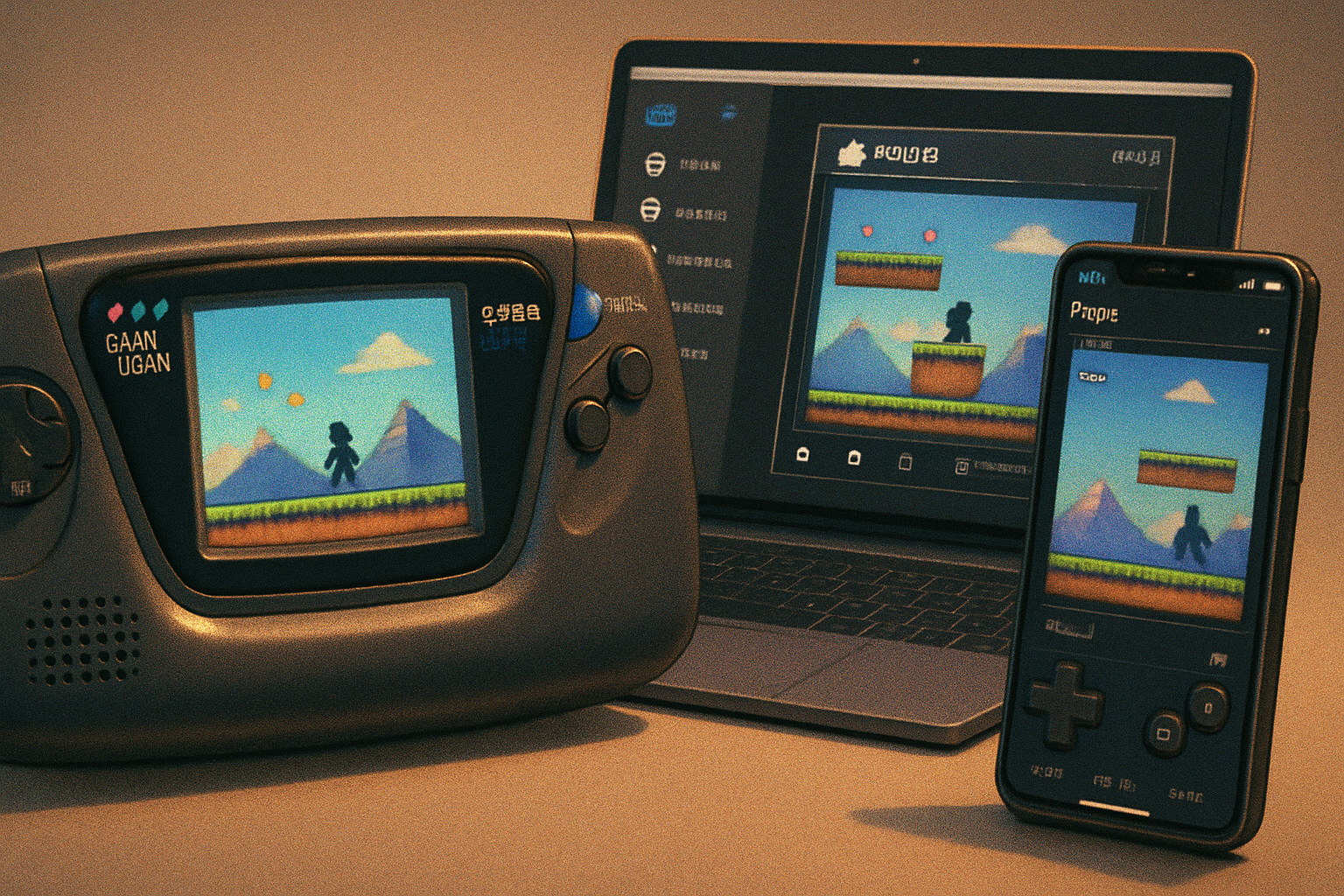
Emulation is a small, stubborn time machine. It doesn’t resurrect plastic batteries or the smell of 8-bit cartridges, but it does the next-best thing: it lets you play these games on a phone in your pocket or on a laptop with a proper controller and zero chance of the screen going dim mid-boss. This article explains how to use Sega Game Gear emulators to bring those titles back to life - responsibly, sharply, and with a few aesthetic touches so they look like the originals rather than a smeared Photoshop of nostalgia.
Why the Game Gear still matters
The Game Gear was Sega’s answer to Nintendo’s Game Boy: a color-screened, battery-guzzling handheld that took risks. It showcased games that never made it to the bigger consoles in the same form, and its library includes oddities and ports worth revisiting. Emulation preserves those oddities and makes them playable on modern hardware - and, if you care about authenticity, lets you reproduce the quirks the hardware had (image cropping, odd color balance, that faint hiss in the audio).
Think of emulators as translators and stage directors: they don’t just run the old code, they choose how it will appear under modern lights.
A short, necessary legal note
Emulators themselves are legal: they are software that mimics old hardware. ROMs (game files) are a gray-and sometimes illegal-area. Many publishers still own the copyright to their games. The safest, least-embarrassing paths:
- Play games you own by ripping cartridges yourself with hardware like the Retrode (Retrode).
- Buy official rereleases or collections when available.
- Use public-domain, homebrew, or distributor-authorized ROMs.
For a general primer on the legal status of ROMs and emulators, see the encyclopedia entry on emulators and ROMs: Video game emulator - ROMs and legal status.
I will not give instructions on finding copyrighted ROMs illegally.
Pick your emulator: the short list
- RetroArch + Genesis Plus GX core - cross-platform, actively maintained, and flexible. (https://www.libretro.com/ and https://docs.libretro.com/library/genesis-plus-gx/)
- Kega Fusion - classic, user-friendly on Windows and macOS; historically very accurate for Sega handhelds and consoles (Kega Fusion - Wikipedia).
- Mednafen - command-line focused but very accurate, cross-platform (https://mednafen.github.io/).
- MAME - broader multi-platform emulator that includes Game Gear support, more common for arcade preservation (https://www.mamedev.org/).
On mobile, RetroArch is the king because of its ease and cores availability. On desktop, RetroArch or Kega Fusion will cover most users’ needs.
What you’ll need
- A copy of the ROMs for the Game Gear titles you legally own (ripped or authorized). Don’t ask me where to get pirated files.
- Emulator software - RetroArch is the recommended universal solution. Kega Fusion is a fine alternative for Windows.
- A device - Windows, macOS, Linux, Android, or iOS (iOS will require sideloading or more effort).
- Optional - a Bluetooth controller (8BitDo, Xbox or DualShock/Bluetooth controllers) for authentic tactile play.
Setup: RetroArch (PC & macOS) - step-by-step
- Install RetroArch
- Windows/macOS - Download from the official site:
- macOS alternative - brew install —cask retroarch (if you use Homebrew).
- Run RetroArch and open “Online Updater” → “Core Updater.”
- Find and download the “Genesis Plus GX” core. That core supports Master System/Mark III, Game Gear, and Genesis/Mega Drive.
- Load Content - File → Load Content → navigate to your Game Gear ROM (.gg or .sms). RetroArch will usually suggest the Genesis Plus GX core; accept it.
- Configure input - Settings → Input → Port 1 controls. Map your keyboard/controller buttons.
- Video settings for authentic look:
- Aspect ratio - Set to 3:4 (or integer scale + core-provided options) so sprites aren’t stretched.
- Pixel-perfect - Enable “Integer Scale” if you want crisp pixels.
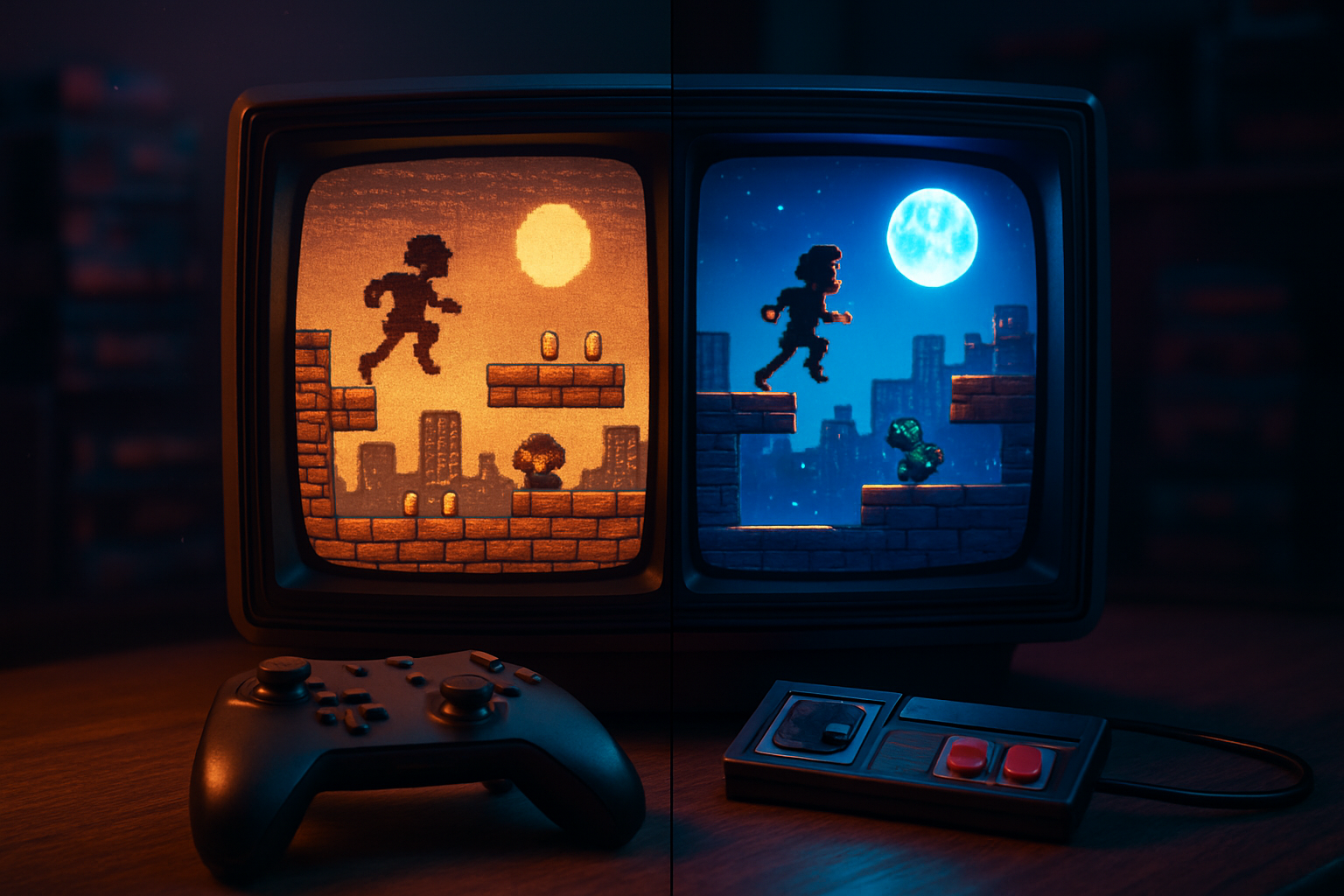
- Shader - RetroArch ships with shaders like crt-pi and crt-royale. Try a gentle scanline shader (crt-simple.hlsl or crt-legacy) and dial it down so it feels tactile, not smeared.
- Run-ahead & Frames - If you want reduced latency, enable “Run-Ahead” and set to 1–2 frames, but test audio sync.
- Audio settings - Keep sample rate at 44100 Hz for best compatibility. If you hear crackle, change the audio driver (Settings → Audio) or increase buffer size.
- Save states & battery saves - Use quick save/load (default F5/F7 on PC) and configure automatic save RAM if your ROM supports battery-backed saves.
That’s a basic working setup. RetroArch’s interface is dense; learn its menu so you can make per-game overrides (Options → Save Core/Save Game Overrides).
Windows alternative: Kega Fusion
- Download Kega Fusion from its historical pages or from the project wiki (Kega Fusion - Wikipedia).
- Unzip and run - Kega Fusion is typically distribution-free.
- File → Load Game, pick the .gg ROM; configure Inputs and Video options.
- Kega Fusion has built-in per-system palettes and scaling; try its scaling filters for a period-correct feel.
Kega Fusion is simpler if you want a fast, no-hassle experience, but it lacks RetroArch’s cross-platform modularity.
Android (phone/tablet)
- Install RetroArch from the Play Store or F-Droid.
- Open RetroArch → Online Updater → Core Updater → download “Genesis Plus GX”.
- Put ROMs in a folder on your device (e.g., /Games/GameGear/).
- In RetroArch, Load Content → Navigate to your folder → select ROM. Choose the Genesis Plus GX core.
- Controls - If you’re playing on-screen, turn on “Onscreen Overlay” for a Game Gear button layout, or better: pair a Bluetooth controller.
- Performance tips - On weaker phones, disable shaders and set Audio Latency to a higher value to avoid stutter. If keyboard or controller lags, try enabling “Low Latency Mode” but only if your device can handle it.
Alternate paid option: MD.emu (for Sega Master System / Genesis / Game Gear) on Android is polished and simple.
iOS (sideloading or jailbroken devices)
iOS is complicated because you can’t usually download emulators directly from the App Store. Your options:
- AltStore - Sideload RetroArch via AltStore (
- Jailbreak - If you have a jailbroken device, RetroArch can often be installed through Cydia repositories.
Once RetroArch is installed, the in-app steps are the same: get the Genesis Plus GX core, add ROMs via iTunes File Sharing or the Files app, configure controls. Expect quirks and keep backups.
Controller & input recommendations
- Bluetooth is your friend - 8BitDo controllers are affordable, reliable, and map well to retro layouts.
- For the authentic single-handed Game Gear experience, map the Start button to a shoulder button so you can reach D-Pad + A/B comfortably.
- Always test button mappings in the emulator’s Input Test screen before playing seriously.
Visual fidelity: make it feel like a Game Gear
- Aspect ratio - Game Gear used a very squarish screen. Use 3:4 or integer scaling to avoid wide pixels.
- Shaders - Try an “LCD” or “scanline” shader but keep it subtle. Overdone shaders make games ugly.
- Palette & Brightness - Some Game Gear ports had washed colors or oversaturation. Use per-core color correction if you want to match the original handheld’s hue.
A small trick: for a nostalgic photo, turn your phone’s screen down and photograph it against a dim background. The result is closer to how the Game Gear’s colored screen felt: bright and slightly lonely.
Save states, SRAM, and battery-saves
- Save states are instant and forgiving. Use them for practice and tough levels, but don’t exclusively rely on them if you want the original experience.
- Many Game Gear titles used battery-backed SRAM for saves. Make sure the emulator’s option to “Save SRAM” or “Auto Save RAM” is enabled so your progress persists between sessions.
Performance & troubleshooting
Problem: stuttering audio.
- Increase audio buffer, change audio driver (on PC), or reduce shader load.
Problem: input lag.
- Use a wired controller if possible, enable “VSync” carefully, or enable run-ahead in RetroArch. Cheaper Bluetooth adapters and phones can add latency.
Problem: ROM won’t load.
- Check file extension (.gg, .sms). Some ROMs are zipped; extract them. Try another core like Mednafen or MAME if Genesis Plus GX refuses the ROM.
Problem: wrong aspect or cropped image.
- Toggle “Aspect Ratio” to 3:4 or “Core Provided” in RetroArch. Try “Integer Scale” to keep pixels square.
Sensible preservation ethics
Emulation is about preservation, access, and appreciation. If you love a title enough to play it regularly, consider buying official rereleases where available. Companies do sometimes re-release classics on modern storefronts. Support the creators and publishers when you can.
Closing argument
Nostalgia is a delicate drug: it tastes best when diluted with a little honesty. Emulators let us pry open the past and measure what was worth keeping. With RetroArch or Kega Fusion on a modern device, you can scrub through the Game Gear catalog, find surprises, learn design quirks, and - yes - finally beat that boss without losing a battery.
It is not cheating to make games playable in the present. It’s preservation. It’s cultural archaeology with better graphics options.
If you follow the legal guidance and tune your emulator, the system will reward you: crisper pixels, consistent framerate, and the exact chord of 1990s Sega nostalgia - now on your phone, ready for a commute, a coffee shop, or a dark, triumphant living room.
References
- RetroArch / Libretro: https://www.retroarch.com/ and https://www.libretro.com/
- Genesis Plus GX (libretro core) documentation: https://docs.libretro.com/library/genesis-plus-gx/
- Kega Fusion historical reference: https://en.wikipedia.org/wiki/Kega_Fusion
- Mednafen: https://mednafen.github.io/
- MAME: https://www.mamedev.org/
- Retrode (hardware cartridge dumper): https://retrode.com/
- AltStore (iOS sideloading): https://altstore.io/